Know where your money goes, in eight steps
Kharcha is a simple expense tracker. Add what you spend in a few taps, and see each month's total and where it went. Your expenses are kept on your device, and it works offline. No account and no sign-up.
- Add expenses with notes and dates; monthly total and where it goes
- Past months, PIN lock, five currencies, CSV backup, works offline
- Sync across your phone and computer, through a private sync sheet we set up for you
- Your own categories, with colours
1Add an expense
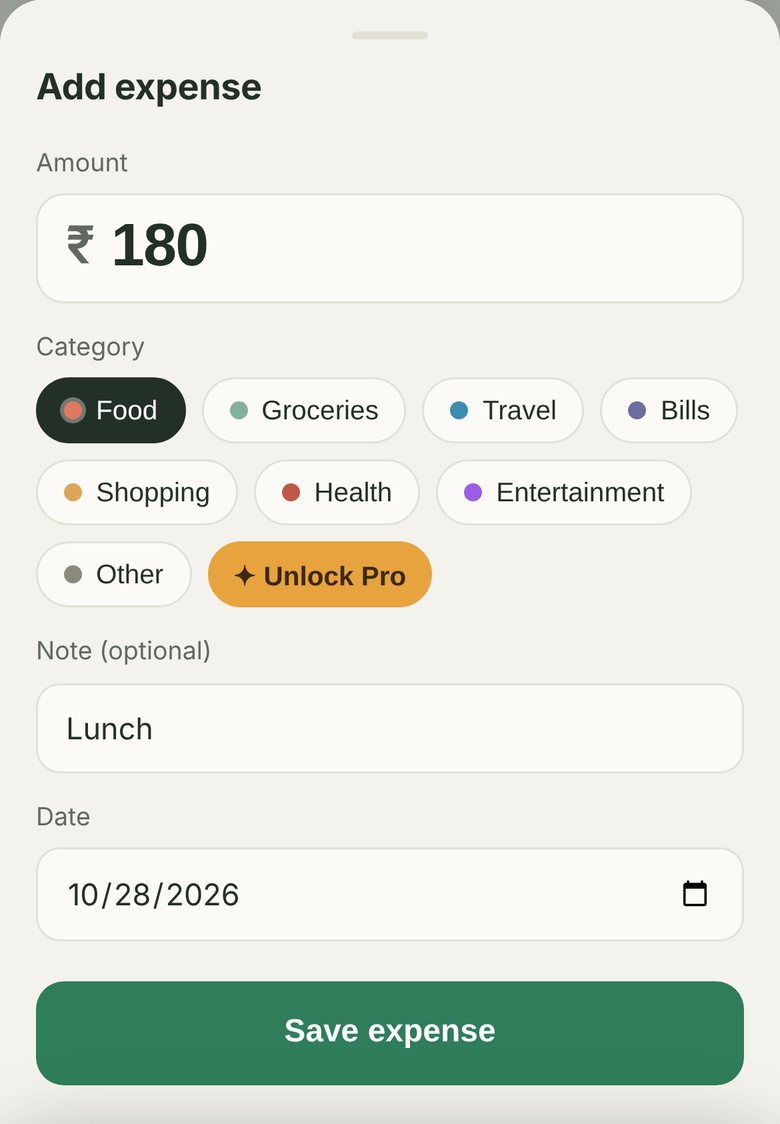
- Open kharcha.stroban.app and tap the green + Add expense button at the bottom.
- Type the Amount.
- Tap a Category: Food, Groceries, Travel, Bills, Shopping, Health, Entertainment or Other.
- Optional: add a Note, such as "lunch" or "auto fare". The Date is today unless you change it.
- Tap Save expense.
The first time you open Kharcha, a Get started card offers what most people set up first: the currency, a PIN and Pro, plus a link to this guide. It goes away once you add your first expense.
2See where it goes
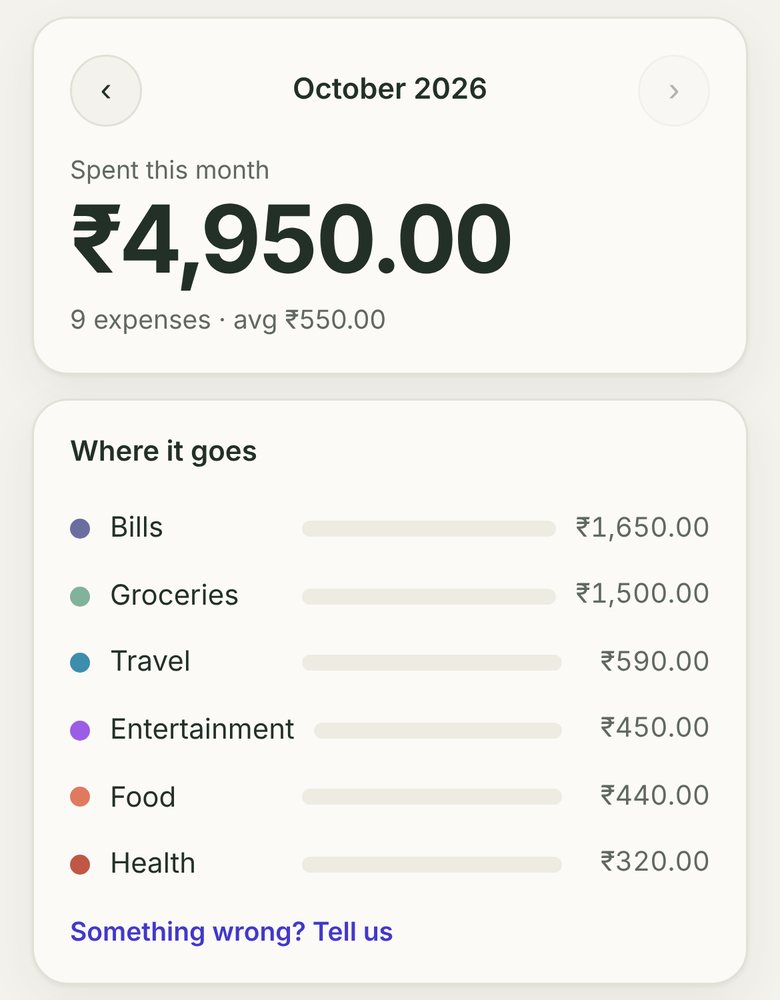
- The top card shows Spent this month, with the number of expenses and the average.
- Where it goes lists the month's categories, biggest first, with a bar for each.
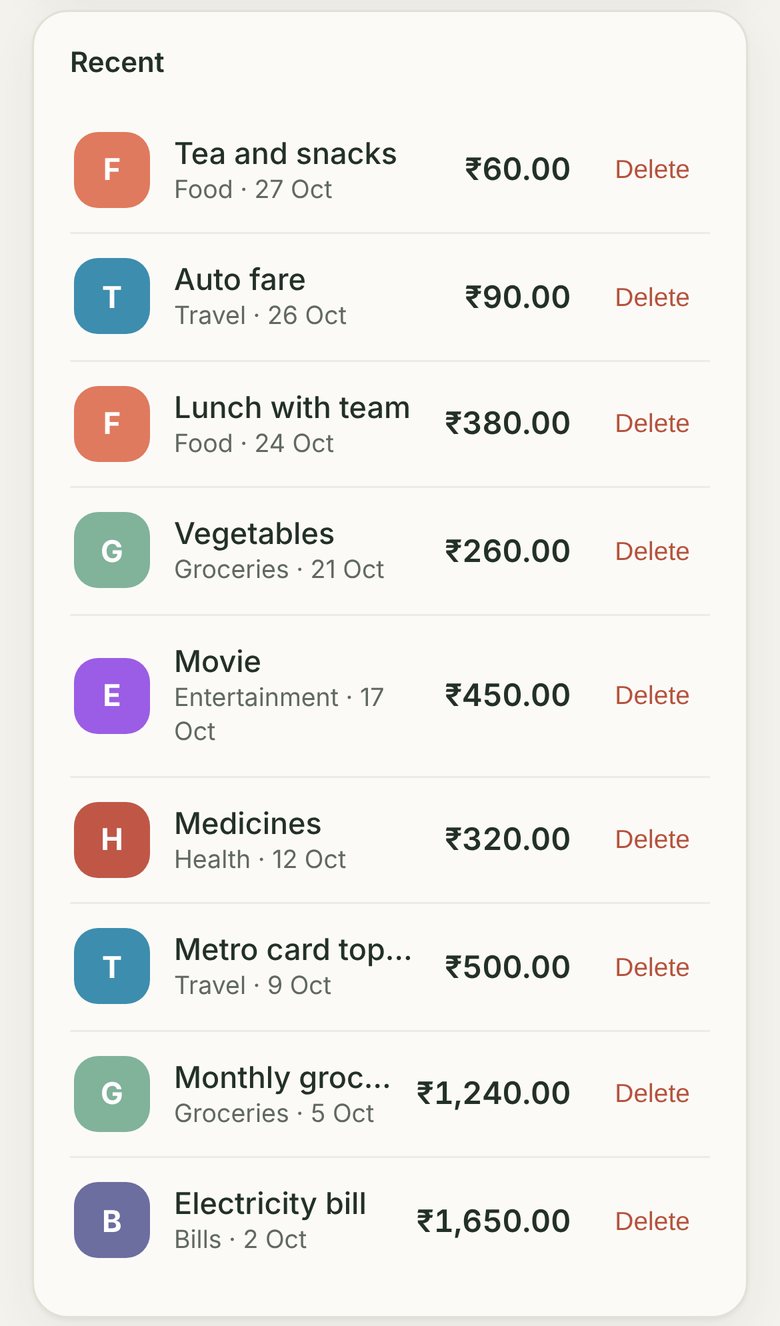
- Recent lists the month's expenses, newest first.
- Use ‹ and › next to the month to look at earlier months.
To remove an expense, tap Delete on its row. It goes straight away, with no undo. To change one, delete it and add it again.
3Currency and PIN lock
Tap ⚙ at the top right to open Settings.
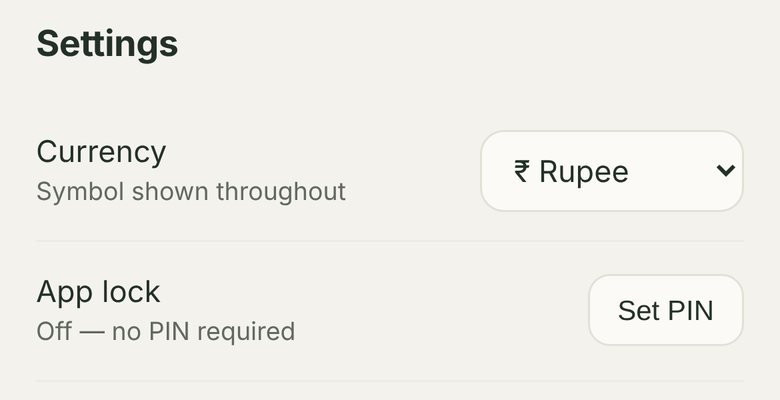
- Currency: choose ₹ Rupee, $ Dollar, € Euro, £ Pound or AED Dirham. This changes the symbol shown everywhere; it doesn't convert the amounts.
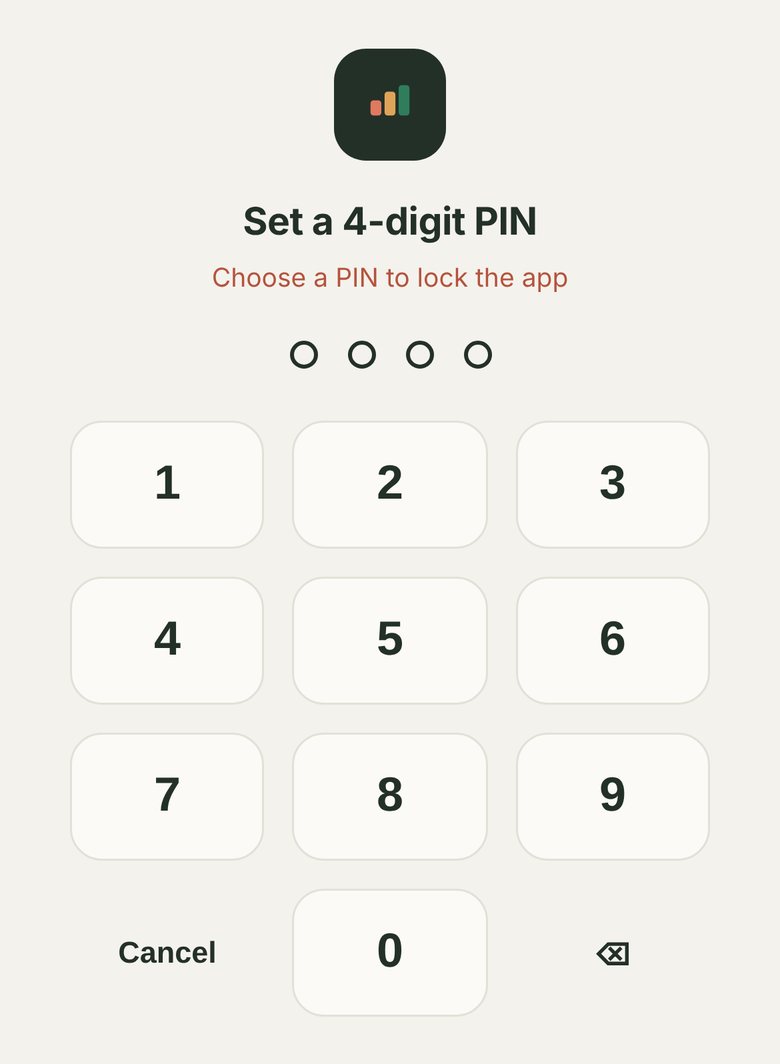
- App lock: tap Set PIN, type a 4-digit PIN, then type it again. Kharcha now asks for it each time it opens. Change and Turn off are in the same place.
4Install it on your phone
Installed, Kharcha opens from its own icon like any other app, and it works without the internet.
- Android and computers (Chrome or Edge): tap Install on the bar at the top of Kharcha, or in ⚙ Settings → Install Kharcha. If you don't see it, use your browser's menu: Install app or Add to Home screen.
- iPhone and iPad (Safari): tap Share, then Add to Home Screen.
5Back up with a CSV
In ⚙ Settings → Back up your data, tap Export CSV. Kharcha saves a spreadsheet file of every expense, with the date, category, note and amount. It opens in Excel or Google Sheets.
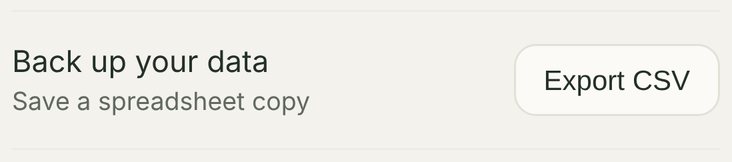
Do it now and then, and keep the file somewhere safe. Settings also shows your All-time total.
6Activate Pro
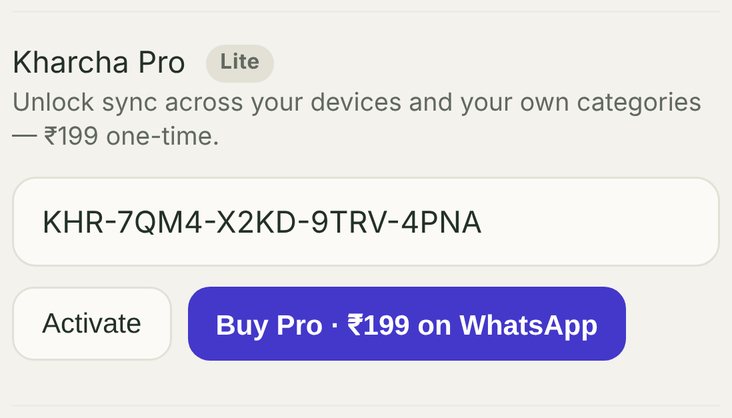
Buy Pro from ✦ Get Pro or Buy Pro · ₹199 on WhatsApp and pay by UPI. Your key arrives by email from hello@stroban.app (check spam the first time). It looks like KHR-XXXX-XXXX-XXXX-XXXX.
- Open ⚙ Settings.
- Under Kharcha Pro, paste the key into the box and tap Activate.
- The badge next to Kharcha Pro changes from Lite to Pro.
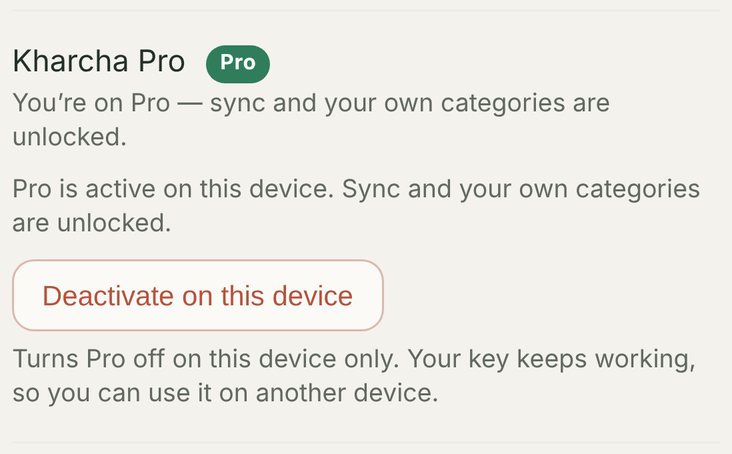
To use Pro on another phone or computer, paste the same key there.
7Sync across devices Pro
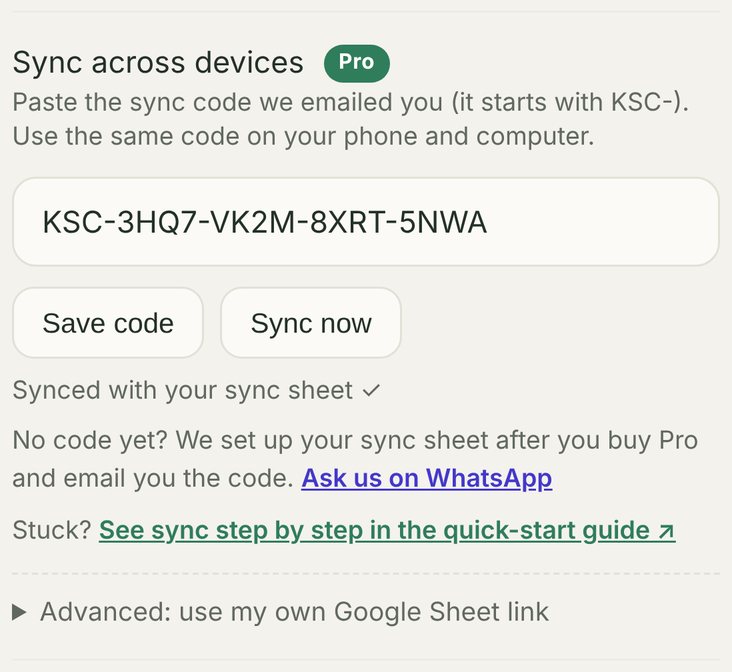
After you buy Pro, we set up a private sync sheet for you and email you a sync code from hello@stroban.app. It looks like KSC-XXXX-XXXX-XXXX-XXXX and comes in a separate email from your key.
- Activate Pro first (step 6).
- In ⚙ Settings → Sync across devices, paste the sync code and tap Save code.
- Tap Sync now. The status reads "Synced with your sync sheet ✓".
- On your other phone or computer, open kharcha.stroban.app, activate the same key, and paste the same sync code.
New expenses are sent to your sync sheet as you add them, when you are online. Each device catches up when you open Kharcha on it, or when you tap Sync now. Expenses you add offline are sent the next time you sync.
8Your own categories Pro
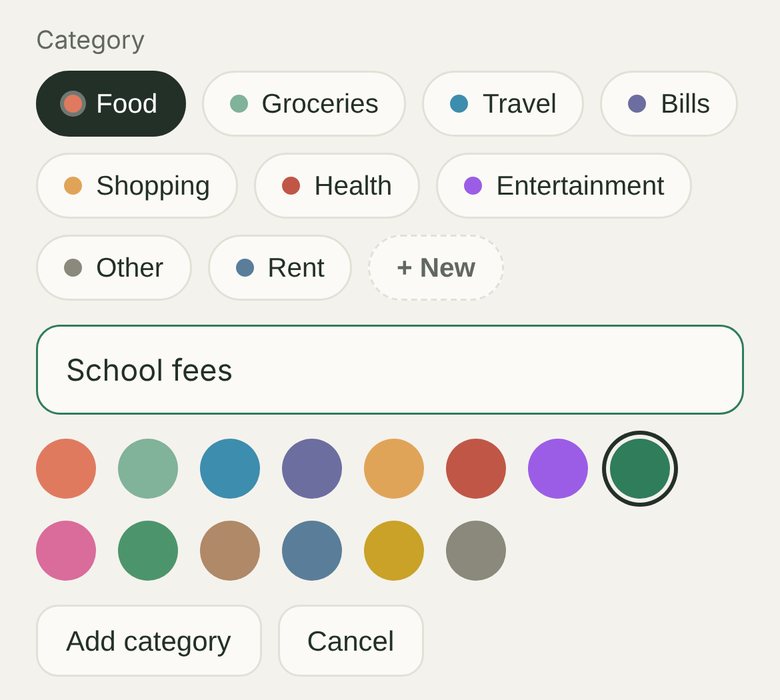
- Tap + Add expense, then the + New chip at the end of the categories. (In Lite, this chip reads ✦ Unlock Pro.)
- Type a name, such as "Rent" or "School fees", and pick a colour.
- Tap Add category. It is ready to use straight away.
To remove one you added, tap × next to it in ⚙ Settings → Your categories. With sync on, your categories reach your other devices too.
✓Good to know and help
- Private by design. Your expenses are kept in this browser on your device. Only these ever reach Stroban: your licence key when you activate it, your expenses if you use Pro sync, and a feedback message if you choose to send one.
- Clearing your browser's data deletes your expenses on that device, and so does ⚙ Settings → Start over → Clear all. Export a CSV first.
- Removing a category on one device doesn't remove it from your other devices.
- Shared phone or computer? Use ⚙ Settings → Deactivate on this device. Your key keeps working on your own devices.
+91 83673 54510
hello@stroban.app
Tap Send feedback in the app. If we use it, Lite users get Pro at 50% off.